API Key
How to Generate an API Key for GenAI
-
Access the GenAI Console: 💻 Go to the GenAI console and log into your dashboard.
Click login with Google, Enter you Mayo Clinic Email, and follow the prompt.
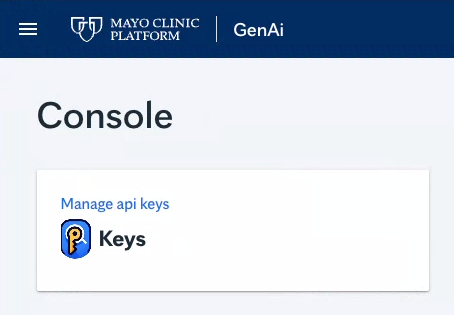
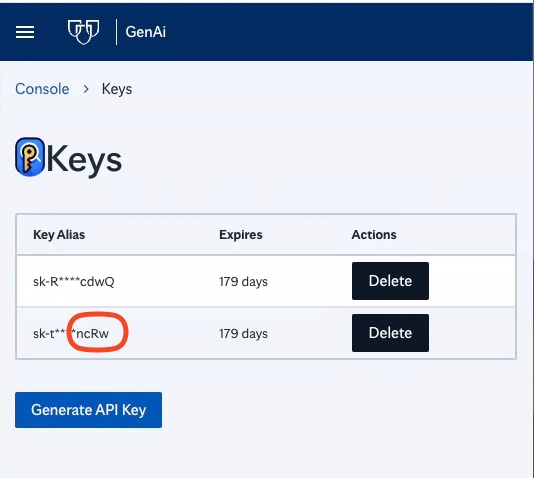
- Locate the Manage API Key Section: 🔑 This is labeled as "Keys".
- View Existing Keys (Optional): 👀 If you've generated keys in the past, they'll be listed.
- Generate a New Key: ✨ Click on the "Generate Key" or "Create New Key" button.
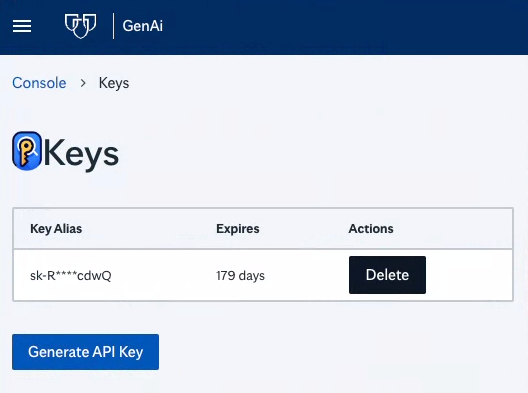
- Provide a Name (Optional): 📝 If a dialog box prompts you for a name, you can optionally add one to help identify the key later. Leave it blank if you don't need a name.
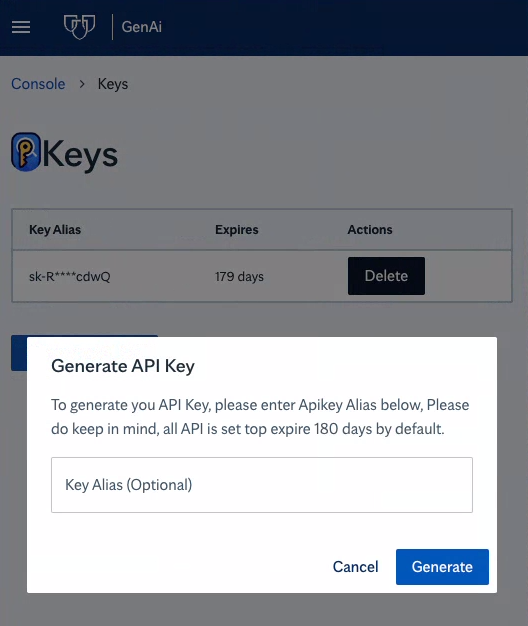
- Confirm Key Generation: ✅ Click "Generate" to create your new API key.
- Securely Copy Your Key: 📋 A new dialog will display your unique API key. Immediately click "Copy" or carefully highlight and copy the entire key.
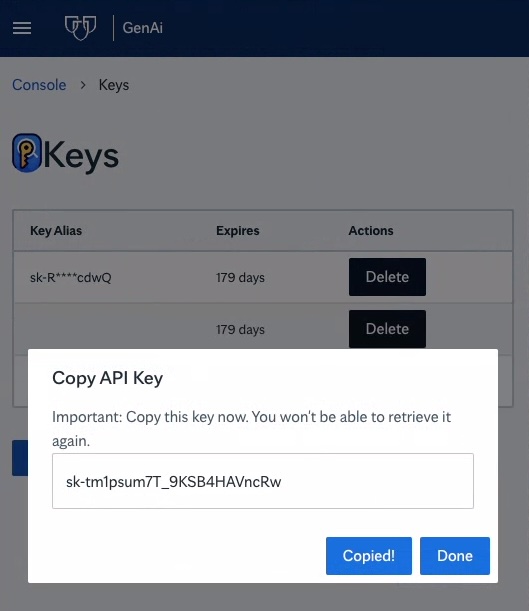
- Store the Key Safely: 🔒 Paste the copied key into a secure location like a password manager. This is crucial, as you won't be able to view the key again after you click "Done."
- Finish: 🎉 Click "Done" to close the dialog.
Important:
- Your API key is like a password for GenAI. 🛡️ Keep it safe and don't share it publicly.
- You'll need this key to use the GenAI Python SDK, other future SDKs, and to access the GenAI endpoint via curl or other API tools. 🛠️